Contents
This user guide (7700-05-0218 rev 0) covers the combination of the G400W wireless base station with the “P400W Monitor” application used to monitor Instech P400W syringe pumps. This guide assumes you are running the latest versions:
G400W base station wireless firmware: 1.0.0
P400W Monitor app: 1.0.0
P400W pump firmware: 1.4.0
To upgrade your software, see Maintenance below.
Overview
Set-Up
Operation
Maintenance
Troubleshooting
Overview
The P400W Monitor application will show the status of all P400W pumps that are within range of the base station and set to the same channel (0-9). The application displays the primary information on each pump’s home screen (status, progress bar, flow rate and pressure) and will flash with any alarms or alerts, such as occlusion detected, syringe empty or syringe near empty.
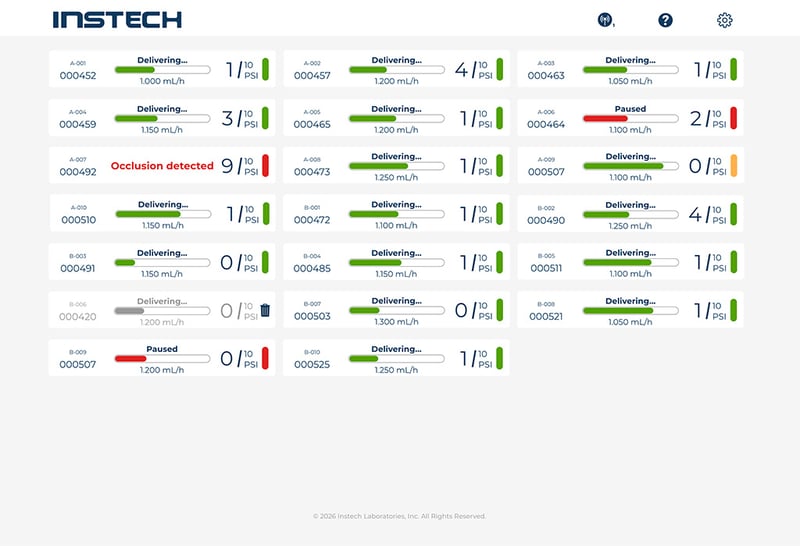
You can arrange pumps by serial number or a Pump Name that you assign. Clicking on a particular pump will show more detailed information and allow you to edit the Pump Name.
The application only monitors the pumps; it updates every few seconds. You cannot control the pumps from the application and neither the pumps nor the application save any study data.
The G400W base station communicates with the P400W pumps through a proprietary IEEE 802.15.4 network. It is not WiFi or Bluetooth so there is no interaction with other networks or devices. Very little set up is required, other than to set a common channel and make sure the devices are in range.
The P400W Monitor software is a browser-based application that is hosted on the small computer in the base station. You can view the application by plugging a monitor, mouse and keyboard into the base station—a stand-alone network—or connect the base station to your local area network with an ethernet cable in order to view the application on computers, tablets or smartphones that are on the same network. No internet access is required.
Set Up
Base Station Hardware
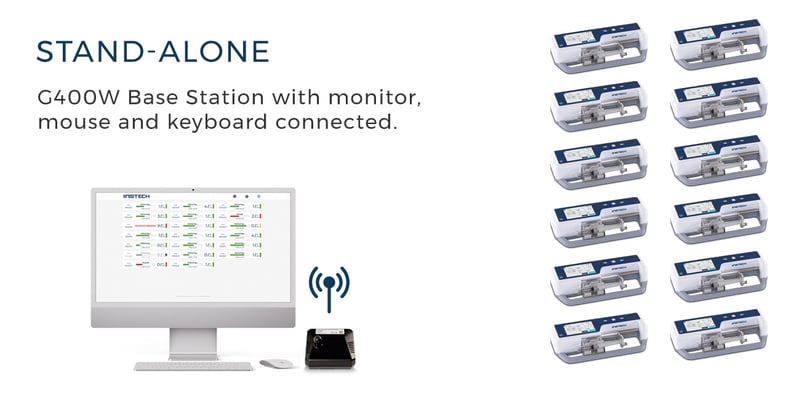
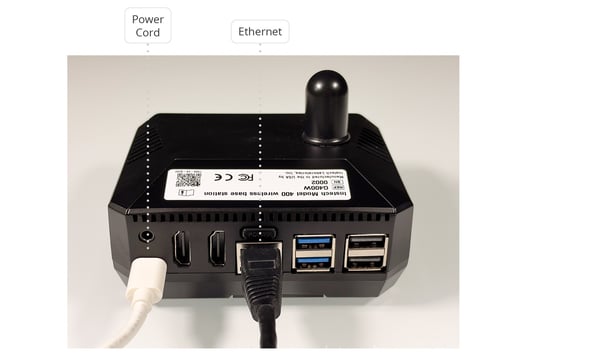
For the simplest configuration, connect a monitor to one of the HDMI ports on the base station, and a computer and mouse to the USB-A ports. You will be able to monitor pumps without any interaction with your corporate network. You will need to be within wireless range of all the pumps.
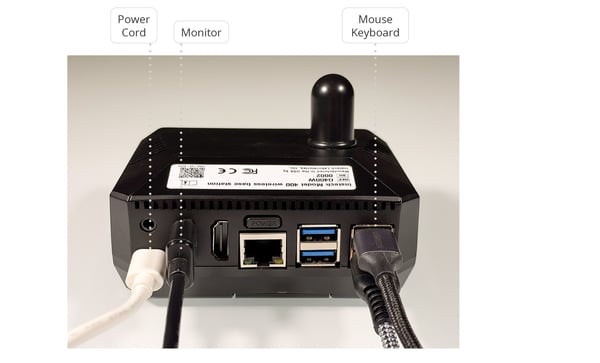
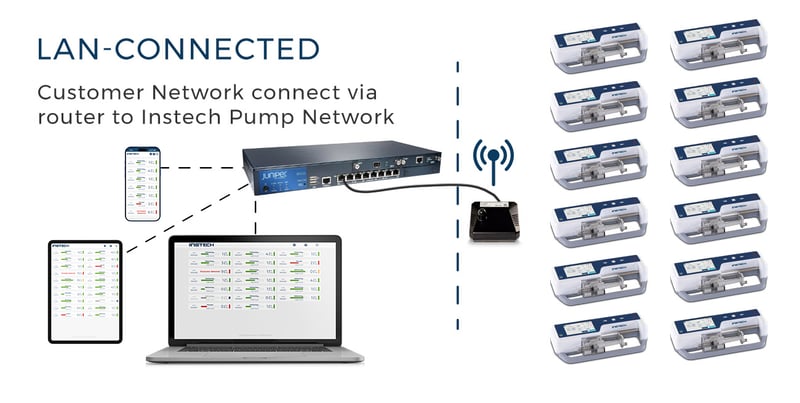
Connect the base station to your router with an ethernet cable to be able to view the monitoring app from any device on your local area network. You can still connect a monitor, mouse and keyboard as shown above if you wish.
Monitoring App
Stand-Alone Network
When the base station is turned on, the P400W monitor app should start up automatically and take up the full screen in “kiosk mode.”
LAN-Connected Network
The URL to access the monitoring app in your web browser from a computer on a network with a connected base station is:
http://g400w-XXXX:10000/app/monitoring/monitoring
where “XXXX” is the base station serial number, as noted on the label on the top of the device.
When you first visit the software from another device you will reach a screen that asks you to log in to Budibase, the open source platform we use to host the web app on the base station computer.
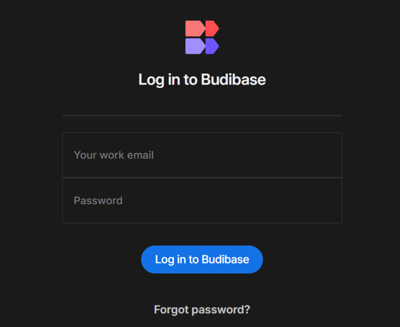
Users of the software should log in with user1@local.net - user5@local.net (not your work email). The default password is “450sgravers!”. Each of the five user accounts allows three logins. If you need administrative access, please contact us.
Operation
Main Screen
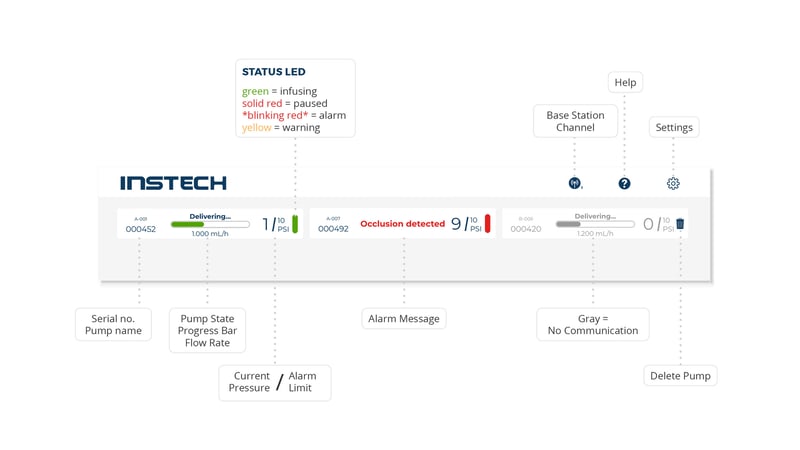
The status of all pumps in range and set to the base station channel will be displayed on the main screen and will update approximately once every 5 seconds. If the base station loses communication with a pump for more than a minute, either because it was turned off, switched to a different channel or moved out of range, the text will turn gray. Click the trash can if you want to delete the pump from the main screen; otherwise, you can wait for the pump to reconnect when it is back in range.
Pump Detail Screen
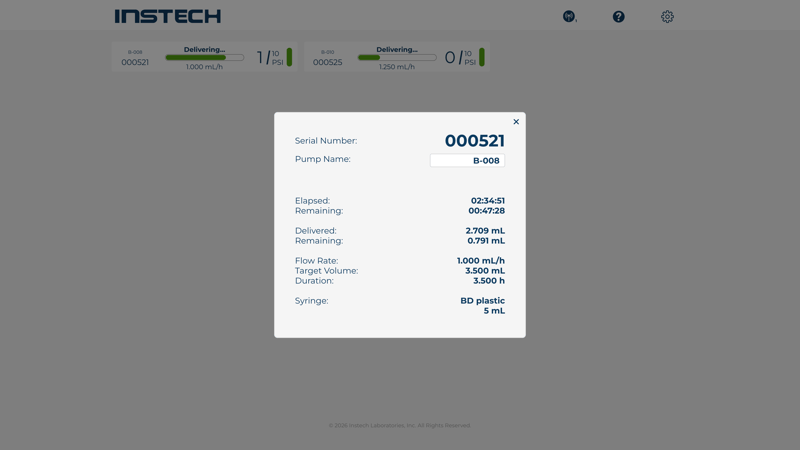
Click on a pump to see the rest of the information from the pump home screen including volumes, times and syringe type. Here you can edit the Pump Name which you can use to sort the pumps on the main screen in an order that you choose. There is a 10 character limit on the name and it will appear in all caps on the main screen. The Pump Name is stored in the app, not the pump. If you delete a pump you will have to reenter the Pump Name the next time you connect it.
Settings
Click on the gear in the upper right corner to open the Settings side bar.
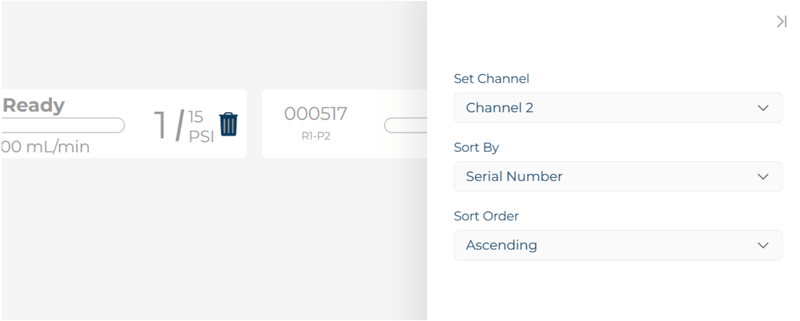
Set Channel. Choose base station channel 0-9 to match the wireless channel of the pumps that you want to monitor. To change a pump’s channel choose Wireless in the settings menu of each pump.
Sort By, Sort Order. You can order the pumps on the main screen by the Serial Number or the Pump Name, in ascending or descending order.
Maintenance
Click the Settings icon on the app to check if you are running the latest software. If not, follow the procedures below to update.
Updating P400W Monitor App
App Version History
| Version | Release Date | Notes |
|
1.0 |
October 1, 2026 | Initial release. |
Update Procedure
-
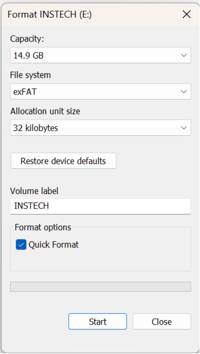
From a computer with internet access, format a 16GB or larger USB drive with File system set to “exFAT” and enter “INSTECH” (all caps) for the volume label.
-
Download and copy the file “budibase_ssd_bundle.tar.gz” to the root of the USB drive with no other files on it. This is a large file so it may take a few minutes.
[download monitor app button will appear here when new release available] -
Power off the base station by pressing the power button for 5 seconds.
- Insert the USB drive into one of the two blue USB 3.0 ports
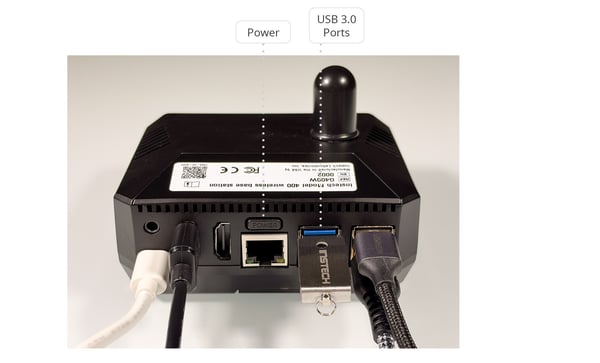
- Press the power button with a short press to restart the base station. You will see a green light on the front of the base station.
- Be patient - the update process will take up to 10 minutes. You will see a Raspberry Pi reboot screen, an OS background, then old version of the app will appear; after a few minutes it will reboot again, eventually progressing to a white screen that says “This site can’t be reached.” After a few more minutes a Budibase log in screen will appear.
- Log in with your username and password (see above). The new version of the app will start and reconnect with pumps that are in the area.
- Open the settings side bar of the app to confirm that the software version has updated.
- Remove the USB drive. (If you forget to do this, it will go through this long update process again the next time you restart the base station.)
- Updating the G400W Base Station Firmware
Updating the G400W Base Station Firmware
| Version | Release Date | Notes |
|
1.0 |
October 1, 2026 | Initial release. |
Update Procedure
- From a computer with internet access, download the file “G400W_firmware.bin”
[download G400W Firmware button will appear here when new release available] -
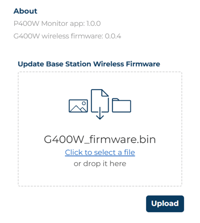
Upload the firmware through the P400W Monitor app
- If the base station is on your local area network:
- Open the monitor app on the computer with the downloaded file
- Open settings side bar
- Drag the firmware file into the box on the side bar and click Upload
- If the base station is its own stand-alone network
- Copy the downloaded file onto a USB drive
- Insert the drive into the base station
- Open the settings side bar
- “Click to select a file”, browse to the USB drive and select the file, click Upload
- Once uploaded a Restart button will appear. Click it and wait approximately 5 minutes.
- In the monitoring app, check the About section of the settings side bar to confirm that the software version has been updated.
- If the base station is on your local area network:
Updating Pump Firmware
See the Maintenance section of the Model 400 Syringe Pump Instructions for Use.
Troubleshooting
| Issue | Probably Cause | Solution |
| The monitoring app does not see my pump |
|
|
| The base station’s fan runs almost constantly and it is warm to the touch | This is normal; it is a computer running in a small aluminum box. | None |
Instech Laboratories, Inc.
450 South Gravers Road
Plymouth Meeting PA 19462 USA
+1 (610) 941-0132
www.instechlabs.com